TCA Podcast Episode 6: "I like OneDrive, but…"

OneDrive for Business has come a long way since it was initially launched and has earned it's place as a leader in Gartner's Magic Quadrant for Content Collaboration Platforms. Nic and I sat down with Stephen Rose from the SharePoint/OneDrive team at Ignite recently to talk about some of the exciting new things that will be coming to OneDrive soon.

For more information on The Cloud Architects podcast, check us out on SoundCloud. We are also available on your favorite podcast app:

The Cloud Architects Podcast

Better late than never.. I'm delighted to annouce that I'll be joining The Cloud Architects Podcast as a co-host. Started by fellow MVPs Nicolas Blank and Warren du Toit, the Cloud Architects podcast is about best practice, guidance, news and cutting edge Microsoft cloud technologies - I'm really excited to be involved.

Microsoft Ignite gave us a great opportunity to connect with and talk to some really interesting people - those episodes will be published soon, but in the meantime, we recently recorded in introductory episode where we talk about some of the complexities of adopting cloud technologies at scale:


For more information about the podcast, visit us on the web or twitter. We are still getting started and experimenting with show formats, etc. and would love feedback so feel free to get in touch and let us know how we are doing.

Office Servers and Services MVP 2017!

The last few weeks have been incredibly busy.. I spent a week in Europe and presented a couple of sessions at Office 365 Engage in The Netherlands and after a quick laundry stop at home I headed off to Washington D.C were I presented two sessions at a small technology conference for overseas schools (K-12). That’s two conferences and four sessions in two weeks – I was pretty exhausted at the end of it all but was super excited when I received an email from the Microsoft MVP program informing me that I had been awarded my fourth Microsoft Most Valuable Professional (MVP) Award.

I’m truly honored to be part of this great community and have some ambitious plans for the next year, so stay tuned!

Dank je wel, Haarlem!

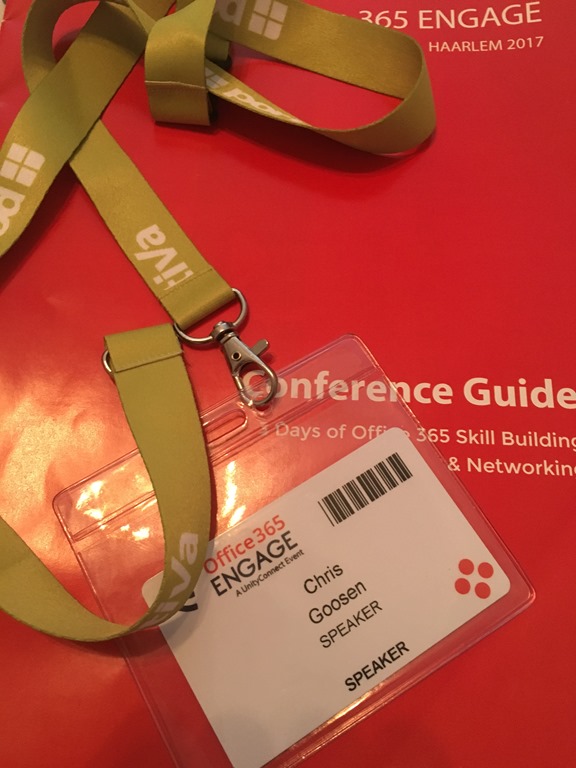
Last week, I was fortunate enough to speak at the inaugural Office 365 Engage conference in Haarlem, Netherlands. I had been looking forward to it for months, not only because it was my first time visiting the Netherlands, but I had heard about how picturesque the city was and had been told that the conference venue, the Philharmonie, was something quite special. I can honestly say that no description could do it justice, it really is the nicest conference venue I’ve ever seen.

The conference itself was extremely well organized and I definitely have to compliment the organizers for the level of thought that went into every detail. There were more than 40 speakers, 31 of which were Microsoft MVPs. We were encouraged to call on our real world experience and be independent voices so this was a true technical conference and not just another marketing junket. There were 6 tracks with plenty of great content to go around:

  • Azure Infrastructure
  • Exchange Online
  • Office 365 Administration
  • Office 365 Applications
  • Office 365 Development
  • SharePoint Online

My sessions on Office 365 management and mobile device management were well received and I even managed to pull off an elaborate demo using a couple of devices. A special thanks to MVH for helping me getting around the need for multiple HDMI inputs, it definitely made the demo flow more smoothly.

After a few great days, I can only imagine that Office 365 Engage 2018 will be even better. If you are looking to build your skills and network with some of the best in the business, I’d definitely encourage you to check out Office 365 Engage in 2018 – I hope to see you there!

I am speaking at Office 365 Engage!

I’m really excited to announce that I’ll be speaking at Office 365 Engage in Haarlem, Netherlands 19-22 June 2017.

Office 365 Engage is Europe’s foremost conference on Office 365 and will be hosted at the Philharmonie Theatre in the energetic picturesque city of Haarlem.

I am thrilled to be one of more than 30 Microsoft MVPs speaking at the event so if you are interested in learning all about Micrsoft Office 365, it isn’t too late to register today!

Use discount code ‘SPRCG378’ to receive a 20% discount when registering.

Script: Connect-365.ps1 - Connect to Office 365 services using remote PowerShell

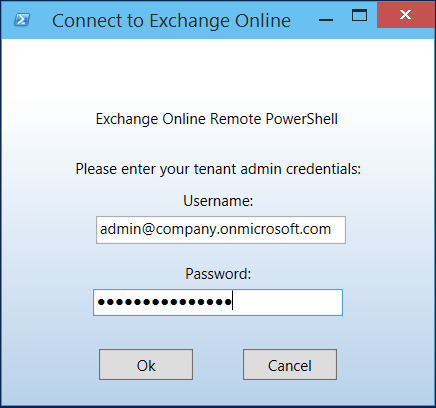
I'm excited to announce the release of Connect-365! Back 2012, I put together a basic script with a GUI to simplify connecting to Exchange Online via remote PowerShell. I had never intended to make the script publicly available and it was just something I used myself. After a couple years I realized that it had been shared with so many colleagues and clients that I decided to clean it up and publish it on the TechNet gallery. Connect-EXO was born! Here's a screenshot of the original first version:

Over time the script matured into what Connect-EXO is today. One of the challenges in the early version was that I used WPF for the GUI, this was problematic for older versions of PowerShell so I made the decision to port it to Windows Forms for backward compatibility. Forms is old and added a lot of bloat and since backwards compatibility is no longer a concern, I decided to move back to WPF. Connect-365 is essentially the next version of Connect-EXO, I renamed it so more accurately reflect it's purpose and this will allow me to continue to maintain Connect-EXO.

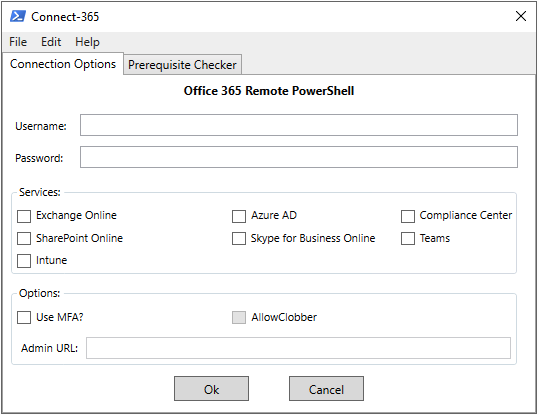
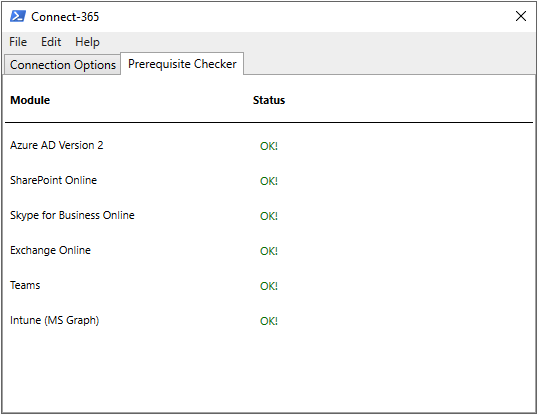
Connect-365 features a GUI that will prompt for your tenant credentials and then connect to various Office 365 services using remote PowerShell. The built-in prerequisite checker will check to ensure that the correct modules are installed and provide a download link for those that are not.

The current version of the script allows connectivity to:

  • Exchange Online
  • Azure Active Directory (using v2 module)
  • Office 365 Security & Compliance Center
  • Skype for Business Online
  • SharePoint Online

Requirements:
This script will work natively in PowerShell 4.0+

Usage:
There are no parameters or switches, simply execute the script: .\Connect-365.ps1

Execution Policy:
This script has been digitally signed and will run just fine under a "RemoteSigned" execution policy

Screenshots:

Roadmap:

  • Support Azure AD v1 and v2 - Removed as v1 is depreciated
  • Support for Exchange Online MFA (via module) - Done!
  • Derive SPO Admin URL
  • Auto-install prerequisites
  • Much more..

Download:
I have published it to the TechNet Gallery, it can be downloaded by clicking here…

Connecting to Exchange Online with remote PowerShell from a Mac

Yes! it is finally possible to connect to Exchange Online from PowerShell installed on MacOS. I noticed some tweets about this being possible on Linux earlier in the week so I thought I’d re-visit testing it on MacOS. PowerShell remoting has been available in the MacOs version since powershell-6.0.0-alpha.15, but it didn’t include the ability to specify a “ConnectionUri’ as the endpoint – it only worked with server names and IP addresses. powershell-6.0.0-alpha.17 which was recently released now includes this functionality.

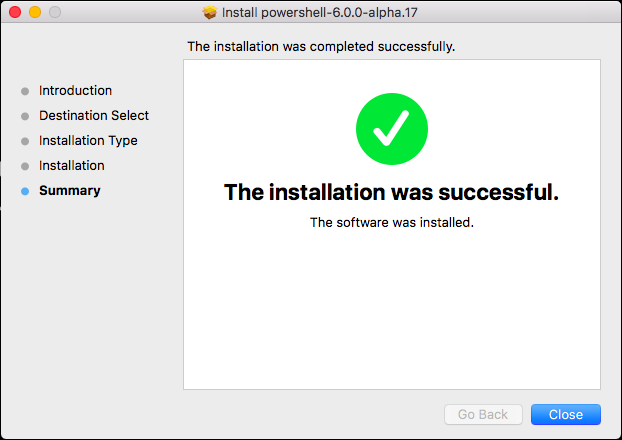
The first thing you need to do it download and install the latest release from here, you’ll want to download at least powershell-6.0.0-alpha.17

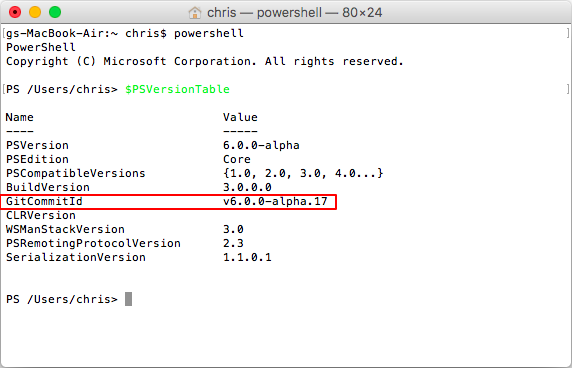
Next launch PowerShell and confirm the version:

1
$PSVersionTable

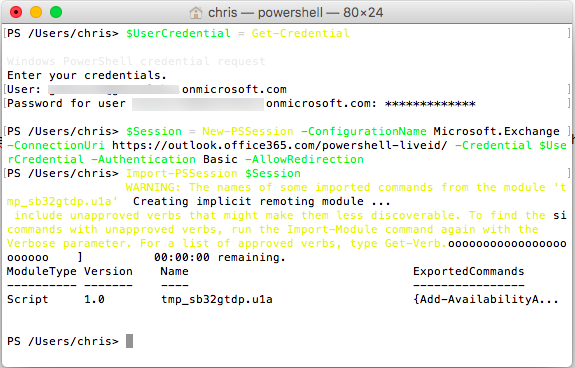
We are now ready to run establish our remote session. First let’s define our credentials:

1
$UserCredential = Get-Credential

Then create the session:

1
$Session = New-PSSession -ConfigurationName Microsoft.Exchange -ConnectionUri https://outlook.office365.com/powershell-liveid -Credential $UserCredential -Authentication Basic -AllowRedirection

And finally, import that session:

1
Import-PSSession $Session

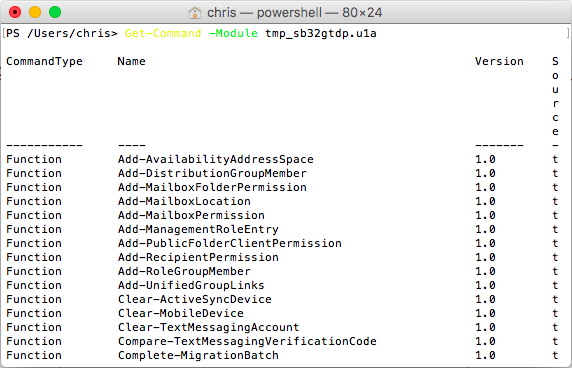
Once connected you have all the Exchange Online cmdlets available to you:

I haven’t thoroughly tested it yet, but I look forward to spending some time using it soon!

Changes to RSS feeds

Since starting this blog in 2008, I have been using Google Feedburner to publish my RSS feeds and enable 'subscribe by email' functionality. At the time it was a great platform and it provided many benefits, but after nearly 9 years that is no longer the case.

Feedburner has been pretty stagnant since 2012 and I have recently started to notice RSS validation errors in my feed which in-turn cause issues with some of the current and planned integrations I have running on the blog. Over the next month, I will be making some changes to the way RSS feeds work on the blog. I will not remove RSS feeds entirely but will be transitioning them from Feedburner.

My analytics data shows that I do have a bunch of subscribers using RSS and email and I do expect the transition to be fairly smooth. Unfortunately, those subscribing via email will need to resubscribe once the transition is done - I figure that an 'opt-in' strategy would be best in this instance. All in all, I'm hoping for minimal disruption.

TLDR; I will continue to offer RSS feeds, but some upcoming changes may mean that you need to resubscribe.

Single Sign On with Azure AD Connect

Ever since the launch of Office 365 (and BPOS before that) there has been a desire to make accessing these services as seamless as possible. Single Sign On (SSO) has long been high on the requirements list for many organizations and while it has been possible for some time now to provide a near seamless login experience, it has historically come at a cost in the form of additional infrastructure - usually deployed on-premises and at the very least carrying some sort of administrative burden. I’m not against identity federation, I think it definitely has it’s place and most of the customers I work with already have some federation solution deployed so it makes a lot of sense leveraging it for Office 365 as well, but there are always those organizations who don’t already have a solution in place or those smaller environments where it doesn’t make a whole lot of sense to implement a highly-available AD FS deployment.

Password Sync has long been the best compromise, offering a “Same Sign On” experience where users are able to use their existing AD credentials to access Office 365 services. The recent announcement of Pass-Through Authentication and Single Sign-on means that things are about to get a whole lot better!

I wanted to put together a quick post and run through how easy it is to setup Single Sign On and review the user experience when it is used with Password Sync. Single Sign On can also be enabled with the new Pass-through authentication option, but that’s a story for another post!

Before getting started, it is important to understand the client requirements. The client should:

  • be using a domain-joined machine
  • be using Windows and a supported browser (Edge is not supported)
  • have direct access to a domain controller
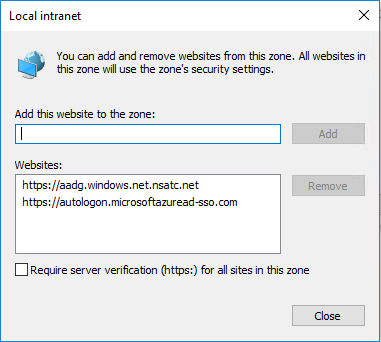
  • have the Kerberos end-points defined in the browser’s Intranet zone (AD Group Policy is the easiest way to do this)
    • https://autologon.microsoftazuread-sso.com
    • https://aadg.windows.net.nsatc.net

Once the client requirements have been taken care of, we need to update AAD Connect. At the time of writing, version 1.1.380.0 is the latest version. It looks like these new features were introduced in version 1.1.370.0. If we compare the the “User sign-in” page to that of an older build you’ll notice the addition of a few more features:
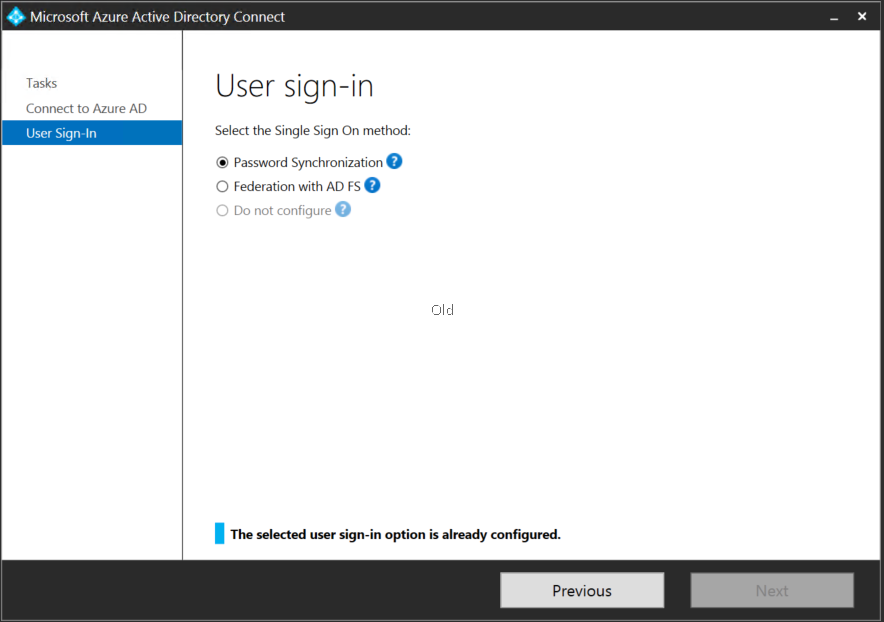
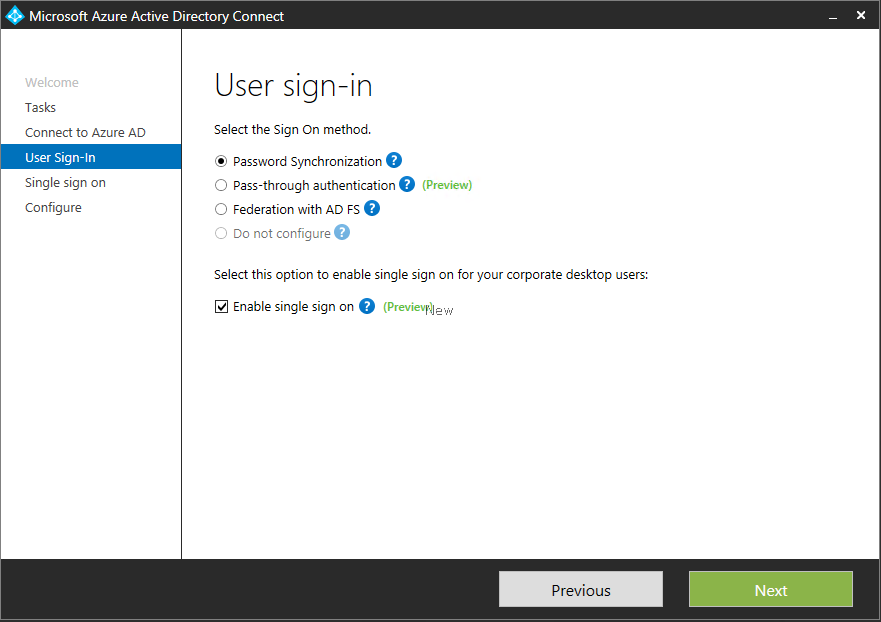
 

To upgrade AAD Connect, follow your regular upgrade procedure. If you don’t have any customizations or special considerations, you can just let the wizard perform the upgrade for you:
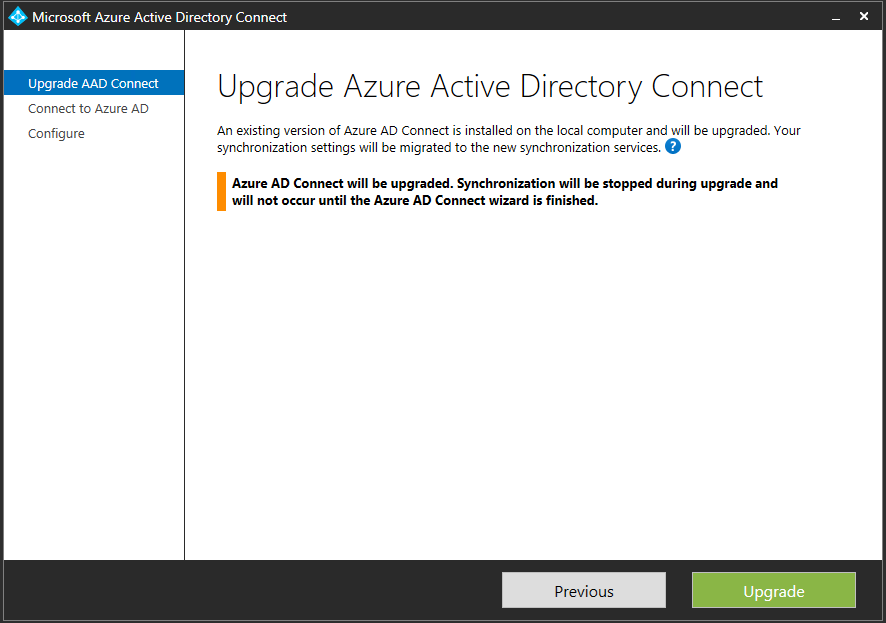
Once upgraded, you’ll want to run the configuration wizard again and tick the “Enable single sign on” checkbox on the “User sign-in” page (shown above) and that is all there is to it!

Let’s compare the user experience before and after enabling Single Sign On. Here is the user experience before:

and here is the user experience after implementing Single Sign On with AAD Connect (you’ll notice that I do not have to re-enter my password this time):

Note: In the demo videos, I have my home page set in a way that forces my custom branding before any user credentials are entered. You can do this by either creating a web redirect or setting your home page to: https://login.microsoftonline.com/login.srf?whr=your_domain.com (replace your_domain.com with your actual domain name!)

There is a lot of great documentation available about Single Sign On on the Microsoft website, I highly recommend that you check it out as well:

Configuring session timeouts for Outlook on the Web (OWA) in Exchange Online

In today’s browser first, cloud first world, many organizations look at reducing risk by imposing strict session timeout settings on their productivity tools and applications. The idea generally is that if a user is not actively using and application for 10 –15 mins, they have completed the task they were working on and have forgotten to logoff correctly. This can be especially dangerous when these applications are accessed on shared terminals or public computers. Given that email remains a vitally important business tool for many organizations, reducing the session timeout on Exchange Online (and Exchange 2016) is a fairly common request and it is really simple to do.

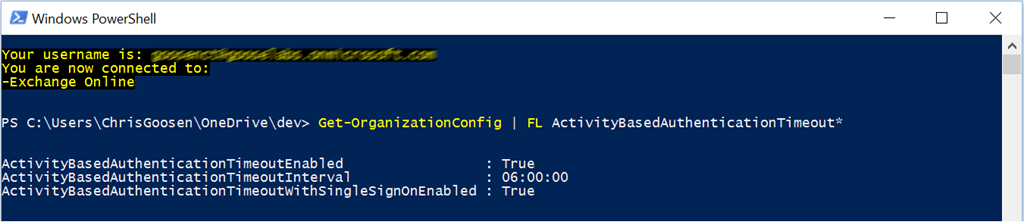
By default, session timeout is enabled for OWA (let’s just call it that, shall we?) and it set to 6 hours. You can confirm this configuration via PowerShell using the Get-OrganizationConfig cmdlet:

1
2
  Get-OrganizationConfig | FL ActivityBasedAuthenticationTimeout*
  

There are two parameters in particular worth paying attention to:

  • ActivityBasedAuthenticationTimeoutEnabled
  • ActivityBasedAuthenticationTimeoutInterval

ActivityBasedAuthenticationTimeoutEnabled is pretty self-explanatory, you will want to keep it enabled if you intended to set the timeout interval. The ActivityBasedAuthenticationTimeoutInterval parameter controls the actual timeout interval in hh:mm:ss format where hh = hours, mm = minutes and ss = seconds. Note that this parameter has a range of 5 min - 8 hrs. Changes can be made using the Set-OrganizationConfig cmdlet, for example to set the timeout interval to 15 mins we'd issue the following cmd:

1
2
  Set-OrganizationConfig -ActivityBasedAuthenticationTimeoutInterval 00:15:00
  

During my testing, it took a really long time (12+ hrs) for this to take effect so don't be alarmed if it doesn't work right away.

For more information on the Set-OrganizationConfig parameters, see TechNet.